There is a particular kind of tiredness that comes from working at a kitchen table for eight hours. Your neck aches, your lower back has gone stiff, and the laptop screen sits too low, so you hunch. Plenty of people assume the fix is expensive — a standing desk, a premium chair, a second monitor, all of it at once. It is not. Setting up a home office on a budget is mostly about spending in the right order, and about the free fixes that cost nothing at all.
This guide covers exactly that: the five essentials in priority order, the ergonomic rules that matter (with the numbers, from the Mayo Clinic and OSHA), three example budgets from $0 to about $500, and the mistakes that waste the most money. Prices are planning examples, not store quotes, and sources are linked where each claim is made.
Written by Md Masud Rana based on published expert sources. This article has not been professionally reviewed. See our sources below.
Quick Answer: How Do You Set Up a Home Office on a Budget?
Start with the chair, not the desk. Buy a supportive second-hand chair first, raise your screen to eye level with books or a cheap stand, and add a separate keyboard and mouse. Use furniture you already own, buy the rest second-hand, and spend only where it solves a real problem. A workable setup can cost nothing; a comfortable one can be built for around $150, and a complete setup for about $500.
Contents
- What Do You Actually Need? The Five Essentials in the Right Order
- The Chair Comes First — Spend Here Before Anything Else
- The Desk: Cheap Is Genuinely Fine
- Get Your Screen to Eye Level — The Free Fix That Changes Everything
- Light and Sound: The Cheap Upgrades With the Biggest Payoff
- Three Sample Budgets: $0, About $150, About $500
- Small Spaces, Shared Rooms and Renters
- Internet, Cables and the Rest of the Invisible Essentials
- What Recent Research Shows
- 7 Common Mistakes When Setting Up a Budget Home Office
- Final Recommendations
- Frequently Asked Questions
What Do You Actually Need? The Five Essentials in the Right Order
Most budget guides hand you a shopping list. That treats every item as equally important, and they are not. A chair you sit in for eight hours matters far more than a desk lamp, and a screen at the wrong height will hurt you faster than a slow mouse. Get the order right before you spend anything.
- A chair that supports your back. Adjustable height, some lower-back support, a seat that does not press behind your knees. This is where spending money genuinely pays off.
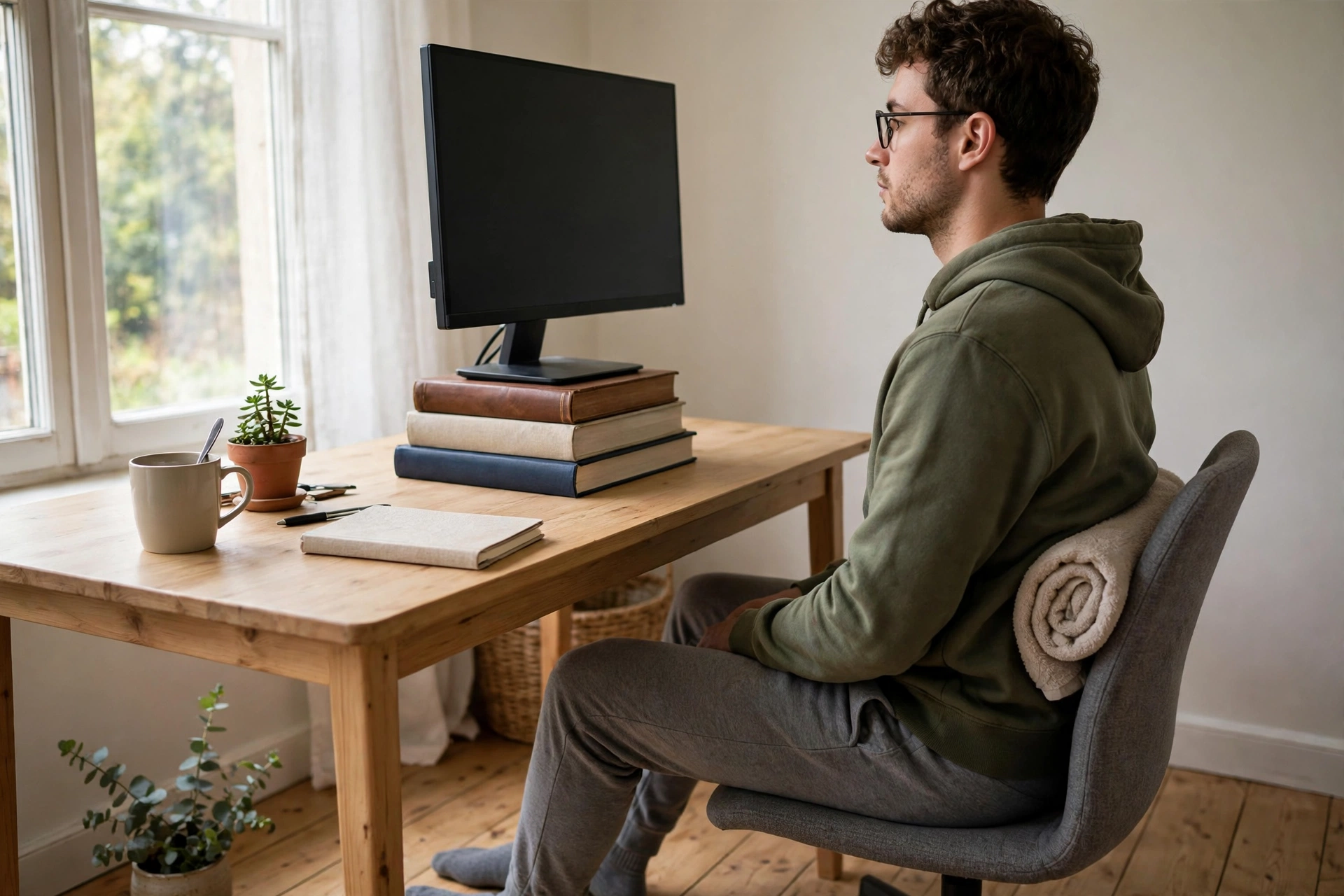
- A screen at eye level. A monitor, or a laptop raised on books with a separate keyboard. Looking down all day is what causes most neck pain.
- A stable desk at the right height. Any flat, sturdy surface works. It does not need drawers, a brand name, or a motor.
- Good light. Daylight first, then one adjustable desk lamp. Bad lighting causes more headaches than bad furniture.
- A keyboard and mouse. Separate ones, at elbow height, so your wrists stay straight. These come last because they are cheap to add later.
Notice what is missing: decoration, a second monitor, a standing desk, a webcam. All useful, none of them in the first five. If your back hurts by noon, a prettier desk will not fix it.
Settle one more thing before shopping: where the office will live. A corner of a bedroom, a section of the living room, a wide hallway, even a large cupboard with the door removed — all of them work, provided the spot has a power socket nearby, decent light, and room to sit without your elbows hitting a wall. Pick the spot first and measure it, then buy furniture that fits the space you have.
The Chair Comes First — Spend Here Before Anything Else
The mistake almost everyone makes: spending $300 on a desk and $40 on a chair, then wonder why their back hurts by lunchtime. Flip that around. The chair is the single most important purchase in a budget home office — it is the only item your body touches for the entire working day.
The Mayo Clinic’s office ergonomics guide puts it plainly: choose a chair that supports your spine, adjust the height so your feet rest flat on the floor (or use a footrest so your thighs are parallel to the floor), and position the armrests so your arms sit gently on them with elbows close to your body and shoulders relaxed. If a chair lets you do those three things, it is good enough, whatever it cost.
What to look for in a budget chair
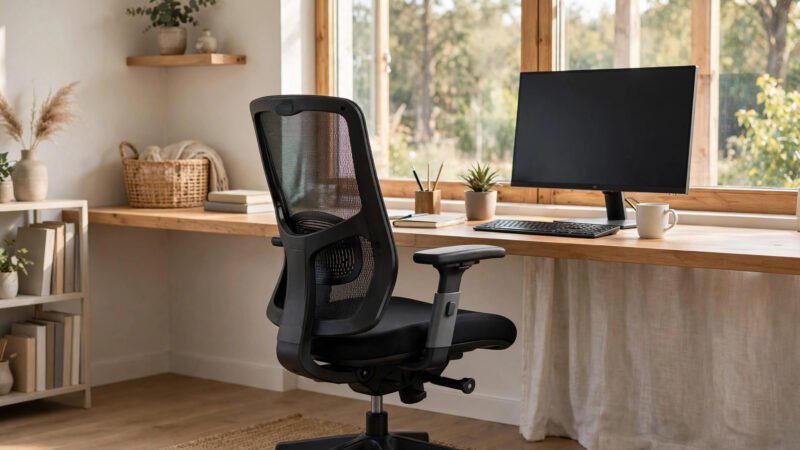
You do not need a $1,000 chair. You need four features, all available well under $150 — often far under it, second-hand. Adjustable seat height is non-negotiable: your feet must reach the floor flat, with knees roughly level with your hips. You need lower-back support, built in or from a small cushion. The seat must not be so deep that the front edge presses behind your knees, and a stable five-wheel base keeps the chair steady when you lean or reach.
Mesh-back task chairs are usually the best value at the low end. Be wary of very cheap racing-style “gaming” chairs: the thin foam often flattens within months, and the shape pushes your shoulders forward.
Second-hand is the budget superpower
Office furniture loses value fast, which is wonderful news for you. When companies downsize or refit, good chairs hit the second-hand market for a fraction of their original price — a chair that sold for $600 new regularly appears for $50–$150 through office liquidators, marketplace sites, and charity furniture shops. Search for “office furniture liquidation” plus your city, and check listings weekly. Before you pay, sit in it and check that the gas lift holds, the tilt locks, and the castors roll smoothly.
The free fixes if you cannot buy a chair yet
Maybe the budget is zero this month. The posture rules cost nothing, and they matter more than any purchase: roll a towel behind your lower back, put a sturdy box under your feet if they dangle, and sit right back so the backrest actually touches you. These three moves turn a mediocre dining chair into something you can work in for a few hours while you save for a proper one. Our guide to choosing an ergonomic office chair goes deeper into features and second-hand checks.
The Desk: Cheap Is Genuinely Fine
A desk has one job: hold your work at the right height without wobbling. A $40 flat-pack and a $1,400 hardwood desk do that job almost identically, which is why the desk is the worst place to spend big money early on.
Standard desk height is about 73–76 cm (29–30 inches), and it suits most adults. The test is your elbows: sitting upright with relaxed shoulders, your elbows should rest at roughly 90 degrees when your hands are on the keyboard. If the desk is a little too high, raise your chair and add a footrest. If it is too low, the Mayo Clinic suggests putting sturdy boards under the desk legs — an unglamorous fix that works perfectly well.
Budget desk options that actually hold up
- A plain flat-pack desk. A tabletop on four legs, or on two drawer units, costs very little. Avoid clamping heavy monitors to thin particleboard — it can crush.
- A second-hand dining table. Solid wood, often $30–$75 on marketplace sites, and far sturdier than most budget desks.
- A door on two filing cabinets. The classic DIY desk: a hollow-core door from a hardware store, laid across two used filing cabinets, makes a deep, rock-solid surface — and the cabinets give you storage for free.
- A wall-mounted or folding desk. Worth considering if space is tight or you rent — it folds away when the day ends.
Depth matters more than people expect. A narrow desk forces your monitor too close to your face, which strains your eyes and neck. Aim for at least 60 cm (about 24 inches) of depth if you use an external monitor, and keep the space under the desk clear: the Mayo Clinic warns against storing boxes there, because it shrinks the legroom. The OSHA computer workstations guide gives the same advice, recommending roughly 20–28 inches of under-desk leg clearance.
A standing desk is a nice-to-have, not an essential. A converter — a platform that lifts the screen and keyboard on your existing desk — costs a fraction of a full standing desk. And no desk replaces movement: the Mayo Clinic’s guide is blunt that sitting in the same position for hours is not good for your body, however well the workspace is set up.
Get Your Screen to Eye Level — The Free Fix That Changes Everything
If you take one thing from this guide, take this: raise your screen. Working on a laptop flat on a desk means looking down all day, and that downward gaze is the single biggest cause of neck and shoulder pain in home workers. The fix is free, takes two minutes, and changes how your whole body feels by the end of the day.
The numbers come from the Mayo Clinic and the American Optometric Association (AOA), and they agree. Place the monitor straight in front of you, directly behind the keyboard, about an arm’s length away — no closer than 20 inches (about 50 cm) and no further than 40 inches (about 100 cm). The top of the screen should sit at or slightly below eye level. The AOA adds that the centre of the screen works best 15 to 20 degrees below eye level, roughly 20 to 28 inches from your eyes. Bifocal wearers should lower the monitor another 1 to 2 inches.
The laptop trap — and the $0 escape
A laptop glues the screen and the keyboard together, so you cannot have both at the right height at once. That is why the Mayo Clinic recommends that laptop users add an external keyboard and mouse plus a laptop stand, to mimic a desktop setup. But you do not need to buy the stand first: a stack of sturdy books does the same job today, for free. Raise the laptop until the top of the screen is at eye level, then plug in a separate keyboard and mouse — even a basic wired set — so your hands sit at elbow height with your wrists straight. One 24-inch Full HD screen is enough for most office work; a second screen is a productivity luxury, not a comfort essential. If you go dual-screen later, our dual monitor setup guide covers placement, so you do not end up twisting your neck all day.
Your wrists will thank you
Keep your wrists straight and in line with your forearms while you type, with your hands at or slightly below elbow level and your upper arms close to your body. A wrist rest helps only if it keeps your wrists straight — if it bends them upward, it is doing more harm than good. And if your desk has a hard, sharp edge, pad it: the Mayo Clinic notes that extended contact with a hard edge can cause contact stress on the wrists.
Light and Sound: The Cheap Upgrades With the Biggest Payoff
Bad lighting causes more headaches and eye strain than bad furniture, yet it is the upgrade people think about last — and one of the cheapest things to fix.
Start with daylight
Put your desk near a window if you can, but not facing it and not with your back to it. Facing the window means glare on your screen; back to it means you become a silhouette on video calls. Side light is the sweet spot: the window to your left if you are right-handed, so light falls across your work without glare. If glare is a problem, the AOA suggests blinds or drapes, or a screen glare filter as a last resort.
One good lamp beats three decorative ones
When daylight fades, a single adjustable desk lamp does more than a room full of ceiling lights. Look for adjustable brightness and colour temperature — warm light (around 2700–3000K) for the evening, cooler light during the day. A basic LED desk lamp with those features costs very little, and it lights your keyboard without glare and your face properly on video calls. Our home office lighting guide covers placement in more detail.
Noise: the problem you can solve for free
Household noise — a washing machine, children, a neighbour’s dog — breaks concentration more reliably than almost anything else in a home office. Before buying noise-cancelling headphones, try the free fixes: close the door, agree on quiet hours with the people you live with, and play steady background sound through speakers you already own. If that is not enough, a headset with a microphone is usually the cheapest item on the list, and it improves your calls too. For more, see our guide to reducing noise in your home office.
Three Sample Budgets: $0, About $150, About $500
Budgets only help if they are honest, so here are three complete setups with every figure labelled as what it is: a planning example, not a store price. Prices vary by country, by sale, and by luck on the second-hand market — office liquidators, marketplace sites, and charity furniture shops are the best sources. Avoid used chairs with a gas lift that sinks, and used monitors with dead pixels or flicker.
| Item | $0 setup | About $150 setup | About $500 setup |
|---|---|---|---|
| Chair | Dining chair + rolled towel for lumbar support | Second-hand mesh task chair (~$80) | Good second-hand ergonomic chair (~$150) |
| Desk | Kitchen or dining table you already own | Second-hand table or flat-pack desk (~$40) | Wide flat-pack desk or used solid-wood table (~$100) |
| Screen | Laptop raised on books | Laptop on books, or a used 24-inch monitor (~$50) | New or used 24–27-inch monitor (~$150) |
| Keyboard + mouse | Laptop keyboard (temporary) | Basic wired set (~$25) | Comfortable wireless set (~$45) |
| Lighting | Window light | Adjustable LED desk lamp (~$25) | Adjustable LED lamp + monitor light bar (~$50) |
| Headset | Phone earphones | — | Headset with microphone (~$35) |
| Total | $0 | ~$150–$170 | ~$480–$530 |
The $0 setup is a real, workable office: a table, a chair with a towel behind your back, a laptop on books, and a window. The $150 setup is the sweet spot — it buys the two things that change how your body feels (a proper chair and a screen at the right height). The $500 setup is where you stop compromising. For comparison, one recent worked example from another budget guide totals $555 for a similar complete setup, and $375 with free fixes instead of a new chair. The pattern matters more than the total: the chair and screen take the biggest share, the desk the smallest.
Small Spaces, Shared Rooms and Renters
Not everyone has a spare room, and that is fine. A home office does not need a door that closes. It needs a defined spot where work happens and a way to pack it away when the day ends.
A bedroom corner works if the desk faces into the room rather than the bed. A living-room corner works if you can claim the same spot every day — consistency matters more than size. A large cupboard with the door removed — the “cloffice” — genuinely works for a laptop setup, provided you add a small lamp. Our guide to setting up a home office in a small space covers layouts and measurements in detail.
Renters cannot always drill shelves into the wall. Use furniture that does the same job without holes — a tall narrow bookcase beside the desk, a rolling cart that slides under it, a monitor arm that clamps to the desk edge. A folding desk is worth considering too: a real work surface by day that disappears in the evening.
Shared spaces need rules more than furniture. Agree on quiet hours, use a “do not disturb” signal — a closed door, headphones on, a small sign — and keep a lidded box for your work things, so the kitchen table can become a dining table again in ten minutes. Keep the desktop ruthless: only daily-use items live on it. A clear desk removes the visual noise that quietly eats your attention all day.
Internet, Cables and the Rest of the Invisible Essentials
None of this is glamorous, and all of it ruins your day when it fails. Sort it early.
Internet first. Your connection matters more than any piece of furniture. If video calls stutter, move the router closer, or run a wired ethernet cable to the desk — a cable costs very little and beats any Wi-Fi extender. Test the setup on a video call with a friend before your first real workday. One surge-protected power strip beats a chain of adapters.
Cables second. A tangle of cables under a desk is a trip hazard and a daily irritation. A cable tray under the desk plus a handful of velcro ties solves it for very little money.
Backups third. If your work lives only on one laptop, it is one spilled coffee away from disappearing. Set up automatic cloud backup, or a regular backup to an external drive, on the first day.
Finally, a five-minute end-of-day reset: clear the desk, write tomorrow’s first task on a sticky note, and close the laptop. It signals that work is over — a boundary no amount of furniture can provide in a home where the office is also the living room. Our guide to staying productive working from home has more on the routines that make a home setup work.
What Recent Research Shows
The advice in this guide is not new, but the evidence behind it keeps getting stronger — and a few popular beliefs have not survived contact with the research.
Start with your eyes. The American Optometric Association notes that the average American worker spends seven hours a day on a computer, and that people who spend two or more continuous hours a day at a screen are at greatest risk of computer vision syndrome — eyestrain, headaches, blurred vision, dry eyes, and neck and shoulder pain. The symptoms are usually temporary, but they return if nothing changes. The AOA’s main recommendation is simple: the 20-20-20 rule. Every 20 minutes, look at something 20 feet away for 20 seconds, and rest your eyes for 15 minutes after every two hours of continuous computer use.
Why does that help? Part of the answer is blinking. Reporting by the Associated Press notes that people usually blink about 18 to 22 times a minute, but that rate drops to three to seven times a minute while looking at a screen, according to the Cleveland Clinic. The 20-second break is a natural moment to blink fully and let the focusing muscle relax.
One popular fix does not hold up. Blue-light-blocking glasses are widely sold for screen eye strain, but the American Academy of Ophthalmology has said blue light from screens has not been shown to cause permanent eye damage, and that several studies found the glasses not very effective. Breaks, distance, and blinking matter far more than the lenses.
The UK Health and Safety Executive notes that incorrect use of display screen equipment or poorly designed workstations can cause pain in the neck, shoulders, back, arms, wrists and hands, as well as fatigue and eye strain — and that the law covers home workers too. Under UK rules, employers must assess the workstation, reduce risks, provide training, and provide an eye test if a worker asks for one. The HSE guidance is at hse.gov.uk/msd/dse.
The honest summary: the research supports the boring basics — screen at eye level, a supportive chair, regular breaks, and blinking.
7 Common Mistakes When Setting Up a Budget Home Office
1. Buying the desk before the chair. The desk is the visible centrepiece, so it feels like the first purchase. A beautiful desk with a bad chair is a beautiful place to be in pain.
2. Spending on decoration before comfort. A plant and a matching desk set are lovely, but they do nothing for your back, eyes, or focus. Buy comfort first, then decorate with what is left.
3. Working with the laptop flat on the desk. The most common setup in home offices, and the worst for your neck. Raise the screen to eye level — with books, if that is what you have — and use a separate keyboard.
4. Buying the cheapest chair available new. A $40 new chair with thin foam and no adjustment will hurt you and need replacing within a year. A $60 second-hand chair from a proper office brand will outlast it.
5. Ignoring light until the headaches start. People blame the chair for headaches that come from glare or a screen brighter than the room. Check your lighting first.
6. Filling the desk with things you use once a month. Daily-use items on the desk; weekly-use items nearby; everything else in a drawer or another room.
7. Skipping the movement breaks. No chair replaces standing up. The Mayo Clinic advises getting up and walking around as often as you can, and OSHA’s workstation guidance suggests a five-minute break from computer tasks every hour. Set a timer — most people underestimate how long they have been sitting still.
Final Recommendations
- Buy in this order: chair, screen height, desk, light, keyboard and mouse. One item at a time if money is tight.
- Fix the free things today: raise the screen with books, roll a towel behind your back, clear the space under the desk, move the desk so the light comes from the side.
- Buy the chair second-hand if you can. Test the gas lift, the tilt lock, and the castors before paying.
- Use the 20-20-20 rule and a five-minute movement break every hour. Put a recurring timer on your phone until it becomes habit.
- Keep the monitor 20–40 inches away, top of the screen at or just below eye level, and your wrists straight while typing.
- Spend the least on the desk — any stable, flat surface at the right height will do — and sort the internet, cables, power and backups in week one. They are invisible until they fail, and then they cost you a whole day.
- End each day with a five-minute reset: clear the desk, note tomorrow’s first task, close the laptop. The boundary matters as much as the furniture.
Frequently Asked Questions
Fix your screen height first — it costs nothing. Raise your laptop on books so the top of the screen is at eye level, then buy a separate keyboard and mouse. After that, buy a chair, because it is the item your body touches all day. Then a desk, lighting, and accessories.
A workable setup can cost nothing: use a table and chair you already own, raise the laptop on books, and add a rolled towel for back support. Around $150 buys a proper second-hand chair, a basic monitor or desk, and a keyboard and mouse. About $500 buys a complete, comfortable setup with nothing improvised. Prices are planning examples.
Yes, at first. A rolled towel behind your lower back, feet flat on the floor, and knees near 90 degrees give you the same posture rules while you save for a chair. A dining chair works for an hour or two, but over a full workday most people start to feel it.
Every 20 minutes of screen work, look at something about 20 feet away for 20 seconds. The American Optometric Association recommends it to ease digital eye strain, and suggests resting your eyes for 15 minutes after every two hours of continuous computer use. The break lets your focusing muscle relax and gives you a moment to blink fully — blink rate drops sharply while looking at a screen.
A table works perfectly well — a desk is simply a flat surface at the right height. Check two things: the height should let your elbows sit at roughly 90 degrees while typing, and the depth should be at least 60 cm (about 24 inches) so your monitor can sit an arm's length away. If the table wobbles, fix that first.
About an arm's length: no closer than 20 inches (about 50 cm) and no further than 40 inches (about 100 cm), according to the Mayo Clinic. The top of the screen should be at or slightly below eye level, with the centre roughly 15 to 20 degrees below eye level. Bifocal wearers should lower the monitor another 1 to 2 inches.
Choose one spot you can keep, even if it is only a bedroom corner or a section of the living room. Use a compact or folding desk, store things vertically with shelves or a tall bookcase, and keep a lidded box for work items. Measure before buying anything.
A full standing desk is a luxury, not an essential. If you want to alternate between sitting and standing, a standing desk converter that sits on your existing desk costs far less and does the same job. Whatever you choose, no desk replaces movement — get up, stretch, and walk around regularly.
This content is for educational purposes only and does not replace professional medical advice. Always consult a qualified professional before making health decisions.
Conclusion
A good home office is not a shopping achievement. It is a handful of decisions made in the right order: a chair that supports you, a screen at eye level, a stable surface, decent light, and a keyboard that lets your wrists stay straight. Everything else can wait.
Much of this costs nothing. Books under a laptop. A towel behind your back. A desk moved so the window light falls from the side. A timer that reminds you to look away every twenty minutes. Those four moves will change how you feel at the end of the working day more than any purchase.
So start there. Fix the free things this evening, buy the chair when you can, and add the rest one item at a time. Your back, your eyes, and your afternoons will notice the difference long before your bank balance does.
References
- Mayo Clinic — Office ergonomics: Your how-to guide — Mayo Clinic — https://www.mayoclinic.org/healthy-lifestyle/adult-health/in-depth/office-ergonomics/art-20046169
- OSHA — Computer Workstations eTool — https://www.osha.gov/etools/computer-workstations
- American Optometric Association — Computer Vision Syndrome — AOA — https://www.aoa.org/healthy-eyes/eye-and-vision-conditions/computer-vision-syndrome
- Health and Safety Executive — Working safely with display screen equipment — HSE — https://www.hse.gov.uk/msd/dse/
- Associated Press — Screen breaks and the right desk setup offer relief from work-related eye strain — AP — https://www.ap.org/news-highlights/spotlights/2025/screen-breaks-and-the-right-desk-setup-offer-relief-from-work-related-eye-strain/
- FreeSky Remote — How Do You Set Up a Home Office for Remote Work on a Budget? — FreeSky — https://freesky.work/post/how-do-you-set-up-a-home-office-for-remote-work-on-a-budget