Working from home was supposed to make life easier. Yet for millions of us, it traded the morning commute for something sneakier: a dining chair that tortures the lower back, a laptop perched on a stack of cookbooks, and a neck that crackles by Friday. A home office does not need to be a spare room full of expensive kit. It needs to be a small, well-thought-out setup that supports your body through the working day — and a few daily habits that keep stiffness, eye strain, and fatigue at bay. This guide walks through the essentials: seating, desk and screen position, posture, movement, and lighting, so you can build a workspace that genuinely works for you.
Start with Your Chair — It Carries You All Day
You will sit in your chair for roughly two thousand hours this year, so it is the single most important decision in your setup. A supportive chair keeps your spine in a neutral curve, your feet flat on the floor, and your shoulders relaxed rather than hunched. Look for adjustable seat height, lumbar support that fits the small of your back, armrests that let your elbows rest near ninety degrees, and a seat pan deep enough that two or three fingers fit between its edge and the back of your knees.
Many people assume back pain from sitting is inevitable. It is not. Research on workplace musculoskeletal discomfort consistently points to prolonged static posture and poor support as contributors, and matching chair ergonomics to your body is one of the highest-return fixes you can make. If you are ready to choose properly, our complete guide to the best ergonomic office chairs for back pain walks through the adjustment checklist, the features that actually matter (and the marketing fluff that does not), and how to set a chair up for your height. It is the deep-dive companion to this page — read it before you spend a penny.
Whatever chair you choose, the fitting ritual is the same: sit with your back fully against the backrest, adjust height so your thighs are roughly parallel to the floor and your feet rest flat, and bring the lumbar support snug against your lower back. A good chair set badly is barely better than a bad chair.
Desk Height and Monitor Position
With the chair dialled in, your desk needs to meet you where you are. For typing, the desk surface (or keyboard tray) should sit at a height where your elbows hover around ninety degrees and your wrists stay straight and relaxed — neither bent upward nor drooping. For most people this is around 68–73 cm from the floor, though your height decides the exact number.
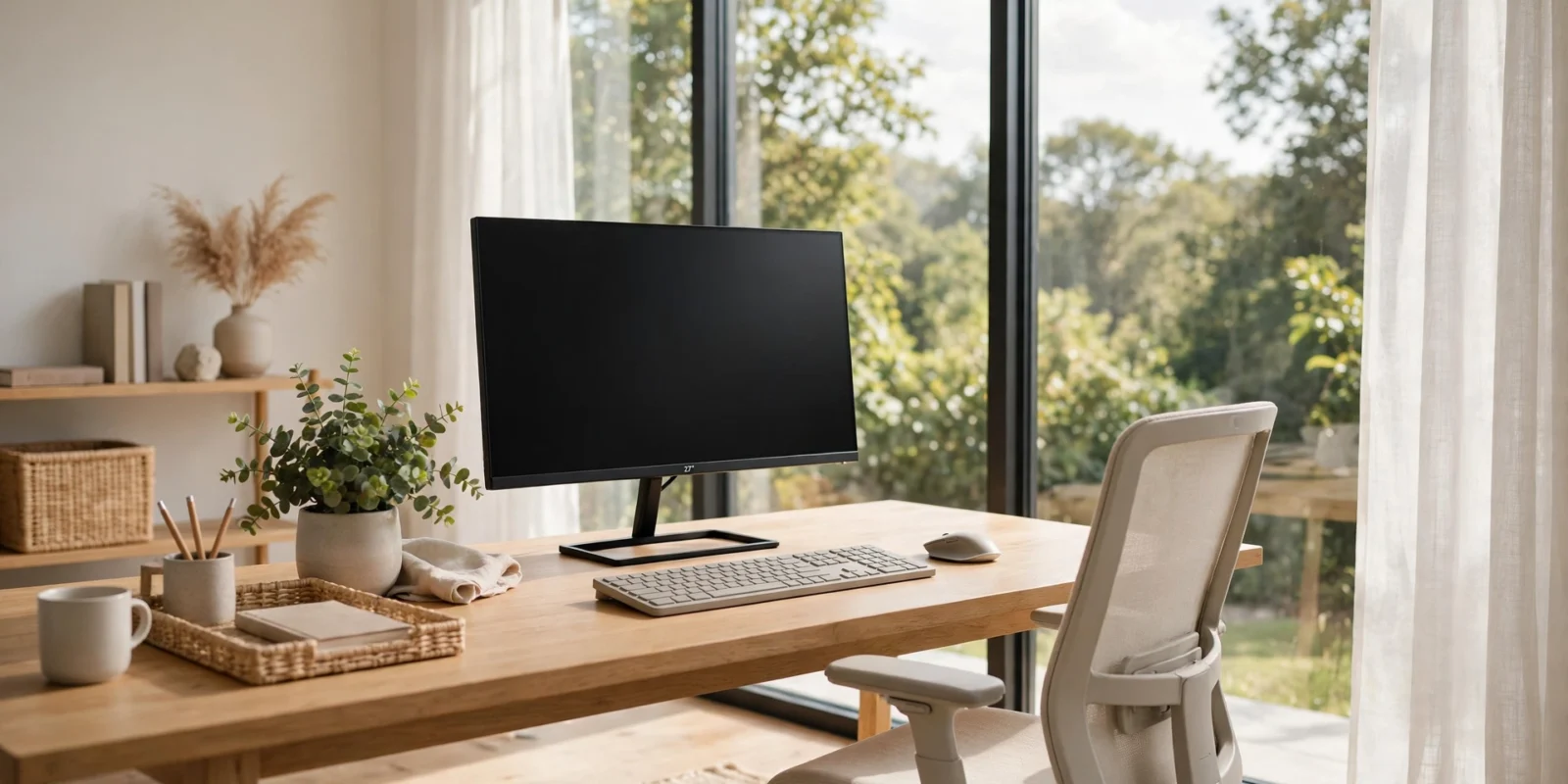
Your monitor deserves equal attention. Position the screen roughly an arm’s length away, with the top of the display at or slightly below eye level, tilted back a touch. This keeps your neck in a neutral position instead of tipping your head up or drooping it down — the classic posture behind “tech neck”. If you use a laptop, this geometry is physically impossible without help: a separate keyboard and mouse plus a laptop stand (or a docking station with an external monitor) is the fix, and it is worth the investment even for occasional long sessions.
Keyboard, Mouse, and Your Wrists
Keyboards and mice are small, but their geometry shapes eight hours of repetitive motion. Keep the keyboard close enough that your upper arms hang relaxed at your sides rather than reaching forward, and centre the spacebar in front of your torso so you are not twisted. Your wrists should float in a straight line with your forearms while typing — avoid resting your wrists heavily on a hard desk edge, which can compress the tissues in front of the wrist.
A compact or split keyboard helps if your shoulders feel pinched; a vertical or larger mouse can ease wrist strain if you notice aching after long days. The principle is simple: if a movement hurts at the end of the day, change the angle, not your pain tolerance.
Sit-Stand Desks: Worth It?
Sit-stand desks have moved from executive luxury to mainstream home-office kit, and the question is fair: do you need one? The evidence suggests the benefit is real but modest — alternating between sitting and standing through the day is associated with less back and shoulder discomfort than sitting alone, but the desk alone does nothing if you never raise it. Treat it as a movement tool, not a posture cure.
If you invest, look for smooth electric adjustment (manual cranks get abandoned), a memory preset for your two heights, and enough depth for your monitor at a proper viewing distance. Budget alternatives exist: a sturdy side table or bookshelf at standing height works for laptop-based standing sessions, and even an ironing board can serve as a trial stand before you commit. Whatever you choose, the rule stays the same — change position often, and never stand locked-kneed for hours.
Setting Up on a Budget
Ergonomics does not require a shopping spree. A rolled towel makes a serviceable lumbar roll. Books raise a monitor to eye level. A footrest can be a box or a stack of paper. The geometry is what matters: feet flat, lumbar supported, elbows near ninety degrees, screen top at eye level. Spend money where improvisation fails — a chair that cannot adjust to your body is the first thing worth replacing, followed by a keyboard and mouse setup that keeps your wrists straight.
Buy second-hand where you can: office chairs are one of the best second-hand bargains, since quality commercial chairs are built to last a decade and depreciate fast. Just check that every adjustment mechanism works before you commit.
Posture: Small Adjustments, Big Difference
Perfect posture is a myth. The healthiest sitting posture is one you change often. Still, a few anchor points help: feet flat, back supported by the chair, shoulders down and slightly back, and your head stacked over your spine rather than jutting toward the screen. A quick hourly self-check — unclench your jaw, drop your shoulders, sit tall — takes five seconds and undoes a surprising amount of slow slouching.
The common mistake is chasing rigidity: sitting bolt upright like a soldier for eight hours is no better than collapsing into the chair. Aim for supported, relaxed, and frequently changing.
Movement Breaks: The Other Half of Ergonomics
Even a perfectly fitted workstation cannot rescue you from eight motionless hours. Short, frequent movement breaks reduce stiffness and may help concentration. A practical rhythm: stand or walk for two to five minutes every 30–45 minutes — refill water, stretch your calves on the stairs, roll your shoulders. Evidence on workplace interventions suggests that alternating sitting and standing, plus micro-breaks, is associated with less musculoskeletal discomfort than sitting all day.
A sit-stand desk can make this effortless, but it is not mandatory. A phone timer, a stretch routine you enjoy, or simply taking calls on your feet all work. Pair your breaks with the “20-20-20” rule for your eyes (below) and you will cover the two biggest sources of workday fatigue.
Lighting That Saves Your Eyes
Eye strain is the quiet complaint of home offices, and lighting is usually the cause. You want plenty of soft, even light without glare on your screen. Position your desk side-on to a window if you can — facing a window puts glare behind your monitor, and sitting with the window behind you reflects it on your screen. A warm desk lamp fills the gap in darker rooms.
Then apply the 20-20-20 rule: every 20 minutes, look at something 20 feet away for 20 seconds. It relaxes the focusing muscles in your eyes. Also match your screen brightness to the room (never a bright screen in a dark room), bump up text size rather than squinting, and enable night-shift or warm colour settings in the evening.
Quick Setup Checklist
- Chair: feet flat, thighs parallel, lumbar support snug, elbows at ~90°
- Monitor: arm’s length away, top at or just below eye level
- Keyboard and mouse: close, wrists straight, no reaching
- Laptop users: external keyboard and mouse plus a stand or dock
- Movement: stand or walk 2–5 minutes every 30–45 minutes
- Eyes: 20-20-20 rule, brightness matched to the room, larger text
- Lighting: side-on to windows, no screen glare, warm lamp for evenings
No. Price helps, but fit matters more than price. A mid-range chair with adjustable height, lumbar support, and armrests, fitted properly to your body, will outperform an expensive chair set up badly. Start with the fitting basics — feet flat, lumbar snug, elbows near ninety degrees — then invest in a chair if your current one cannot adjust to you.
Evidence suggests standing all day carries its own risks, including leg fatigue and varicose vein concerns. The strongest pattern is that alternating between sitting and standing, with regular movement, beats either extreme. If you get a sit-stand desk, aim for a mix through the day rather than standing permanently.
Check your screen height. A monitor that sits too low is the most common cause of workday neck ache — you droop your head toward it for hours. Raise the top of the screen to eye level (books work as a temporary stand), move it an arm's length away, and see whether the ache fades over a week.
Only if your feet do not reach the floor once your chair is at the right height. The rule is: set chair height for your elbows and desk first, then support your feet. If your feet dangle, a footrest — or a sturdy box — keeps your thighs supported and your lower back happy. Shorter people benefit most; if your feet rest flat already, you do not need one.
A practical target is 2–5 minutes of standing, walking, or stretching every 30–45 minutes. Short and frequent beats one long break. Set a repeating timer until the habit sticks, and fold in the 20-20-20 rule so your eyes rest at the same time.
Conclusion
A good home office is not a shopping list; it is a set of relationships — chair to body, desk to elbows, screen to eyes, and you to movement through the day. Get the geometry right once, build in small breaks, and give your eyes decent light, and your workspace will quietly stop being a source of aches. For the biggest decision of the lot, your chair, the complete guide to the best ergonomic office chairs for back pain goes into full depth on choosing and fitting one for 2026.