One screen is never quite enough. You write on the left, check your notes on the right, and somewhere in between you lose the thread of what you were doing. A second monitor fixes that in a way few other home office upgrades can — and it costs far less than a new laptop or a standing desk. This guide covers a complete dual monitor setup: checking your computer can run two screens, choosing cables, setting up Windows or Mac, placing the monitors well, and fixing common problems.
Written by Md Masud Rana based on published expert sources. This article has not been professionally reviewed. See our sources below.
If you have ever alt-tabbed between a spreadsheet and an email twenty times in an hour, you know the problem: constant switching means lost focus. A second screen gives each job its own home — main work in front of you, reference material beside it.
Setting up two monitors is mostly plugging things in and changing one setting. The one thing people skip — checking what their computer can actually drive — causes most of the frustration. Get that right first, and the rest takes about fifteen minutes.
Quick Answer
To set up dual monitors, connect each screen to its own video output on your computer, then open your display settings and choose Extend so your desktop spreads across both screens. On Windows, press Windows key + P and pick Extend; on a Mac, open System Settings, then Displays, and arrange the screens. Put your main monitor directly in front of you at arm’s length, with the top of the screen at or just below eye level. Before buying anything, check how many external displays your computer supports — many laptops, especially base-model MacBooks, can only drive one.
Contents
- Can Your Computer Run Two Monitors?
- What You Need for a Dual Monitor Setup
- How to Set Up Dual Monitors on Windows 11
- How to Set Up Dual Monitors on a Mac
- Positioning Two Monitors Without Neck Pain
- Dual Monitors vs Ultrawide
- Second Monitor Not Detected? Fixes
- What Recent Research Shows
- Common Mistakes With Dual Monitor Setups
- Final Recommendations
- Frequently Asked Questions
Before You Buy Anything: Can Your Computer Run Two Monitors?
Most modern desktops can run two monitors without breaking a sweat. Laptops are where people get caught out: a laptop with one video output can drive one external screen by default, not two, and some MacBooks have a hard limit on external displays that no cable or dock can raise.
So before you spend a penny on a second screen, find out what your machine supports. On Windows, check Device Manager under Display adapters, then look up the card’s specifications for how many displays it supports. On a Mac, click the Apple menu, then About This Mac, and note the chip name. Apple publishes the external display limit for every MacBook Pro chip: base M1, M2 and M3 models support one external display, Pro chips support two, and Max chips support up to four. The 14-inch MacBook Pro with a base M3 chip is a special case — it can drive two external displays, but only with the lid closed.
One port, one monitor
The rule that decides everything is simple: one monitor needs one video signal, and two monitors need two video signals. That means two video outputs on your computer, or one output plus a dock or hub that creates additional outputs.
A cheap HDMI splitter will not do it: it copies one signal to two screens, so both show the same picture. If your device has only one video output, Microsoft’s guidance says you need a docking station or a USB display adapter to run a second monitor.
DisplayPort daisy-chaining is one exception. Some monitors support DisplayPort Multi-Stream Transport, which lets you connect one monitor to the computer and the second monitor to the first. It works on Windows with compatible monitors, but macOS does not support it for most third-party monitors.
What about a laptop plus two monitors?
Yes, if the laptop supports it. A laptop with an HDMI port and a USB-C port that carries video can often run two external monitors alongside its own screen. The catch is the chip limit: a base M1 or M2 MacBook supports one external display, and the only workaround is a DisplayLink adapter, which uses a driver to create extra virtual displays over USB.
If your laptop cannot drive two screens, use the laptop’s own screen as your second display and buy one external monitor instead of two. For many people that is the better setup anyway — the laptop screen holds email or chat while the big monitor holds the real work.
What You Need for a Dual Monitor Setup
You do not need much: a second monitor, the right cable for each screen, and possibly a dock and a monitor arm. Most of it you may already own.
The second monitor
Matching monitors look tidier and keep text size and colours consistent as your eyes move between screens. If you are adding a second screen to one you already own, try to match the resolution and size — a 24-inch 1080p screen beside a 27-inch 4K screen will feel jarring.
For most home office work, a 24-inch or 27-inch IPS monitor at 1080p or 1440p is the sweet spot. Two 24-inch monitors side by side need roughly 52 to 54 inches of desk width; two 27-inch monitors need about 60 to 62 inches.
Cables and ports
Check the video outputs on your computer and the inputs on your monitors before ordering anything. The common connections in 2026 are HDMI, DisplayPort, and USB-C with DisplayPort Alt Mode or Thunderbolt.
For a basic setup, HDMI works perfectly; for 4K or refresh rates above 60Hz, use DisplayPort. A USB-C port only carries video if it supports DisplayPort Alt Mode or Thunderbolt, so check your laptop’s specifications rather than assuming.
A dock or hub
If your laptop has only one video output, a docking station or USB-C hub with two video outputs solves the problem — provided your laptop’s chip supports two external displays in the first place. A dock cannot make a native display limit disappear. Plug two monitors into a two-HDMI dock on a laptop that supports one external screen and you will get one screen, or two showing the same picture.
A dock also earns its keep in other ways: one cable from the laptop carries video, power, and your keyboard and mouse. That single-cable setup is worth having if you take the laptop away from the desk during the day.
A monitor arm (highly recommended)
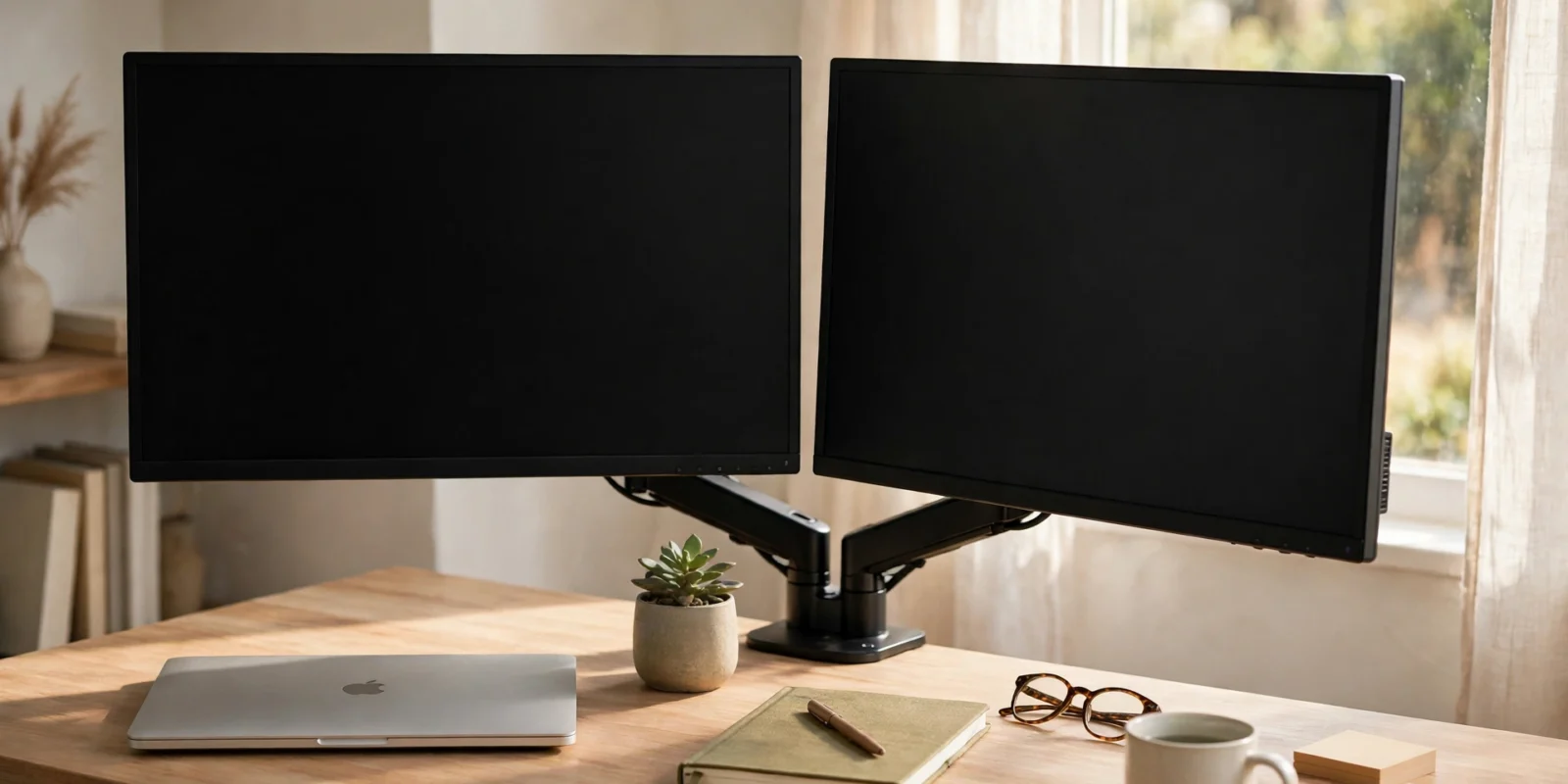
You can use each monitor’s own stand, and many people do. But a dual monitor arm frees a surprising amount of desk space, and it makes the ergonomic part of this guide far easier: you can set both screens to exactly the same height and angle them inward in seconds. Before buying one, check the VESA mount pattern on the back of your monitors — usually 75 by 75 mm or 100 by 100 mm — and the arm’s weight limit. See our standing desk setup guide if you are building the whole workstation at once.
How to Set Up Dual Monitors on Windows 11
Windows makes this straightforward. The whole process takes about ten minutes once the cables are connected. The steps below follow Microsoft’s official guide to using multiple monitors in Windows.
Step 1: Connect the second monitor
Plug the cable into the monitor’s input port, usually on the back or underneath, and the other end into a video output on your computer. If you have a separate graphics card, plug into the card, not the motherboard ports. Power the monitor on — Windows usually detects it automatically. If it shows “No signal”, use the buttons on the monitor to select the input you plugged into.
Step 2: Press Windows key + P and choose Extend
Press the Windows key and P together and a small menu appears with four choices: PC screen only, Duplicate, Extend, and Second screen only. Choose Extend. Your desktop now stretches across both screens. Duplicate shows the same picture on both — useful for presentations, useless for working.
Step 3: Arrange the monitors to match your desk
Open Settings, then System, then Display. You will see a diagram with two numbered rectangles. Click Identify to see which number belongs to which screen, then drag the rectangles so they match how your monitors sit on your desk. Click Apply, then move your mouse across the boundary to check it flows naturally.
Step 4: Set your primary display
The primary display is where your taskbar and most apps open. Click the rectangle for the monitor you want as your main screen and tick “Make this my main display” — this should be the monitor directly in front of you.
Step 5: Match resolution and scaling
Click each monitor in turn and set its resolution to the value marked “(Recommended)” — the panel’s native resolution, below which text looks soft. Then set the scale for each screen separately. A 14-inch high-resolution laptop screen at 150% and a 24-inch 1080p monitor at 100% can work well together. If you dock and undock a laptop, turn on “Remember window locations based on monitor connection” under Multiple displays, and Windows will put your windows back where they were when you reconnect.
How to Set Up Dual Monitors on a Mac
Mac setup is nearly as simple, but the chip limit described earlier is the gatekeeper. Check your chip first, then follow the steps.
Step 1: Connect the monitors
Connect each monitor with the right cable — Thunderbolt or USB-C for most modern Macs, HDMI where the port exists — and power both on. macOS usually detects them immediately. If a monitor stays dark, check its input selection first, then try a different port.
Step 2: Open Displays and arrange
Go to System Settings, then Displays, and drag the screens in the diagram into the same arrangement as your desk. To choose your primary display, drag the white menu bar to that screen.
Step 3: Choose Extend, not Mirror
By default macOS extends the desktop. If both screens show the same picture, you are in Mirror mode — open Displays and switch it off.
The clamshell trick for base M3 Macs
If you have a 14-inch MacBook Pro with a base M3 chip, you can run two external displays with the lid closed. Connect both monitors, close the lid, and wake the Mac with an external keyboard or mouse. Apple added this in macOS Sonoma, and it is the only way to get two external screens from that chip without a DisplayLink adapter.
How to Position Two Monitors Without Hurting Your Neck
This is the part most setup guides rush past, and it is the part your body will notice first. A second screen doubles the temptation to twist your neck, and a poorly placed pair of monitors can turn a productivity upgrade into a sore neck by Friday. The guidance below follows the Occupational Safety and Health Administration’s computer workstation guidance on monitors.
Rule 1: Your main screen goes directly in front of you
OSHA’s guidance is clear: position your monitor directly in front of you so your head, neck and torso face forward, and keep monitors no farther than 35 degrees to the left or right. With two screens, that means the monitor you use most sits squarely in front of you, and the second screen sits beside it, angled toward you.
The common mistake is centring the gap between the two monitors in front of you. That puts both screens off-centre, and you spend the day with your neck slightly turned. It feels fine for an hour. It does not feel fine after eight.
There is one exception. If you genuinely split your time evenly between the two screens, centring the gap and angling both screens inward about 15 to 30 degrees each works better, with minimal head movement either way.
Rule 2: Top of the screen at or just below eye level
OSHA says the top of the monitor should be at or slightly below eye level, with the centre of the screen about 15 to 20 degrees below horizontal eye level. Both monitors should sit at the same height. Even a small height difference forces constant small adjustments in your neck and eye muscles, and those add up over a full working day.
Rule 3: About an arm’s length away
OSHA gives a preferred viewing distance of 20 to 40 inches from your eyes to the screen — roughly 50 to 100 cm. For most people, arm’s length is the practical target: sit back, extend your arm, and your fingertips should just about reach the screen. Both monitors should be roughly the same distance from your eyes.
Distance matters for your eyes as well as your neck. Two screens at different distances make your eyes refocus every time you glance across, which is tiring. Our guide to reducing eye strain while working from home covers the 20-20-20 rule and screen brightness, which matter even more once you have twice the glowing surface in front of you.
A vertical second monitor
One arrangement worth trying is turning the second monitor on its side. A portrait screen is excellent for reading long documents, reviewing code, or keeping a chat window open — all the things that involve scrolling. Most monitors rotate on their stand or arm, and both Windows and macOS let you change the orientation in display settings.
Dual Monitors vs Ultrawide: Which Is Better for Working From Home?
Sooner or later someone will suggest an ultrawide instead: one wide curved screen, no bezel, one cable. The honest answer is that neither wins outright — they solve different problems.
Choose dual monitors if you keep one task fixed while the other changes: writing on the left while email, chat, or a reference document stays put on the right. The bezel in the middle is actually helpful here — it separates the two jobs. Dual monitors are also better for video calls, because you can put the call on the monitor with the webcam and keep your notes on the other screen.
Choose an ultrawide if you live inside one wide task: a spreadsheet where you need columns A through Z visible at once, a video or audio timeline, or a code editor with three panes. In those cases a bezel in the middle is genuinely in the way. A 34-inch 21:9 ultrawide gives you roughly the width of two 24-inch screens, not two 27-inch ones.
Be sceptical of confident percentage claims about productivity either way. Most of the numbers trace back to small studies, often funded by display manufacturers, run on artificial tasks years ago. The real deciding factor is your work shape — and ergonomics. A very wide single screen pushes content past the comfortable viewing zone, so you either turn your neck to its edges or push it so far back that you squint.
| Factor | Dual monitors (2 x 27-inch) | Ultrawide (34-inch) |
|---|---|---|
| Task separation | Natural — the bezel divides the work | Needs window management software |
| Video calls | Call on one screen, notes on the other | One screen; call and notes share space |
| Wide single tasks | Bezel cuts through the middle | Seamless canvas |
| Desk width needed | About 60 inches for two 27-inch screens | About 32 to 36 inches |
| Ergonomics | Main screen centred, second to the side | Edges sit outside the comfortable viewing zone |
If you spend two or more hours a day on video calls, dual monitors are the safer choice. If you rarely take calls and live in spreadsheets or timelines, an ultrawide may suit you better. And if you work in a small room, our guide to setting up a home office in a small space will help you fit either option without the desk taking over the room.
Second Monitor Not Detected? Fix It in This Order
A second monitor that stays dark is the most common dual monitor problem, and it rarely means broken hardware. Work through these fixes in order and stop when the screen comes on.
1. Check the cable and the input
Make sure the monitor is on, the cable is pushed fully in at both ends, and the monitor is set to the right input. Try a different cable if you have one — cables fail more often than monitors do.
2. Check the display mode
Press Windows key + P and make sure Extend is selected. If the setting is “PC screen only”, Windows sends no signal to the second port at all. On a Mac, check that Mirror is switched off in Displays settings.
3. Ask the computer to look again
On Windows: Settings, then System, then Display, then Multiple displays, then Detect. On a Mac: open Displays, hold the Option key, and click Detect Displays.
4. Take out the dock or adapter
Docks, dongles and adapters cause a surprising share of detection problems. Plug the monitor straight into the computer. If it works now, the adapter was the problem.
5. Reset the graphics driver
On Windows, press Windows key + Ctrl + Shift + B. The screen will flicker or beep as the graphics driver restarts. This fixes a surprising number of blank-screen problems, especially after a Windows update. If that does not help, shut the computer down fully and turn it back on.
6. Test the monitor on another computer
If nothing above works, connect the monitor to a different computer or a TV. If it works there, the problem is in your computer’s ports, drivers, or display limit. If it does not work anywhere, the monitor or its cable is faulty. Dell’s troubleshooting guide for monitors that are not detected covers these steps in more detail and applies to any brand, not just Dell.
What Recent Research Shows
The productivity claims around dual monitors are easy to overstate, so it is worth separating what the evidence actually supports from what the marketing repeats.
A 2019 systematic review published in the journal Applied Ergonomics looked across the available studies on multiple-monitor use. It found strong evidence that people prefer working with dual monitors, and moderate evidence that dual monitors improve task efficiency. People like two screens, and they tend to get things done a bit faster with them — but the effect is modest, not transformative.
An older University of Utah study, commissioned by monitor maker NEC, found the same direction of effect for text and spreadsheet tasks — but it used a small group doing artificial tasks, so treat the size of the effect with caution.
The same 2019 review also found something the marketing never mentions: multiple-monitor use was associated with more neck and upper-back discomfort when the screens were placed badly. The productivity gain is real but modest, and the ergonomic cost of a badly placed setup is real too.
Common Mistakes With Dual Monitor Setups
1. Centring the gap between the monitors
Putting the seam between two screens directly in front of you means both screens sit off-centre, and your neck stays slightly turned all day. Put the screen you use most directly in front of you instead.
2. Buying the second monitor before checking the limit
A base-model MacBook that supports one external display will not run two, whatever you plug into it. Check your chip or graphics card specifications before ordering.
3. Using an HDMI splitter and expecting Extend
A splitter copies one signal to two screens, and no setting will change that. Two independent displays need two video signals — a second port, a dock, or a USB display adapter.
4. Setting both screens to different heights
Even a few centimetres of difference makes your eyes and neck adjust every time you glance across. Match the heights exactly — a dual monitor arm makes this easy.
5. Leaving the second screen on Duplicate
Windows sometimes defaults to Duplicate when a new monitor is connected. If both screens show the same thing, press Windows key + P and choose Extend.
6. Ignoring scaling on mismatched screens
A 4K screen and a 1080p screen side by side will show text at wildly different sizes unless you set the scale for each one separately. Take two minutes to match them, or windows will jump in size every time you drag them across.
Final Recommendations
- Check your computer’s display limit before buying anything. For a Mac, the chip decides — base chips support one external display, Pro chips two, Max chips up to four.
- Start with the laptop screen plus one external monitor if you are unsure. It is the cheapest way to get two screens, and for many people it is all they need.
- Use Extend, never Duplicate, for everyday work. Press Windows key + P and pick Extend on Windows; switch Mirror off on a Mac.
- Put your main screen directly in front of you. The second screen goes to the side, angled inward, within 35 degrees of your forward line of sight.
- Match the heights exactly. Top of each screen at or just below eye level, both screens the same height, about an arm’s length away.
- Match resolution and scaling per screen. Set each monitor to its recommended resolution and adjust the scale so text looks the same size on both.
- Buy a monitor arm when you can. It frees desk space and makes height, distance and angle adjustments take seconds.
- Try a vertical second monitor if you read a lot. Documents, code and long email threads are easier to follow in portrait orientation.
- Revisit the setup after a week. Your neck will tell you what the measurements missed. Small adjustments after a few days of real use are normal, not a sign you did it wrong.
Frequently Asked Questions
Connect each monitor to its own video output, then press Windows key + P and choose Extend. Open Settings, then System, then Display, and drag the numbered rectangles to match your desk layout. Click each monitor and set its resolution to the value marked Recommended, then set one screen as your main display.
The most common causes are a loose or faulty cable, the wrong input selected on the monitor, or Windows set to PC screen only instead of Extend. Check the cable at both ends, pick the right input on the monitor, and press Windows key + P to confirm Extend is selected. If that fails, use Detect in Display settings, remove any dock or adapter, and reset the graphics driver with Windows key + Ctrl + Shift + B.
It depends on the laptop. Most modern Windows laptops with two video outputs, or one output plus a dock, can run two external monitors. MacBooks are stricter: base M1, M2 and M3 chips support one external display, Pro chips support two, and Max chips up to four. The 14-inch MacBook Pro with a base M3 chip can run two external displays with the lid closed.
Neither wins outright. Dual monitors suit a stable main task beside reference material that stays put, and they are better for video calls because you can put the call on one screen and notes on the other. An ultrawide suits one wide task such as a large spreadsheet, a video timeline, or a code editor with three panes, where a bezel in the middle would get in the way.
OSHA's guidance gives a preferred viewing distance of 20 to 40 inches from your eyes to the screen, roughly 50 to 100 centimetres. Arm's length is a good practical target. Both monitors should sit at about the same distance, with the top of each screen at or just below eye level.
Only if your computer has one video output and you want two external monitors. A dock or USB-C hub with two video outputs creates the second signal your computer lacks. But a dock cannot raise your computer's native display limit: if your laptop only supports one external display, a dock will give you one screen or two showing the same picture. Check the limit first, then decide whether a dock is the answer.
Your displays are in Duplicate mode, which mirrors the same picture on both screens. On Windows, press Windows key + P and choose Extend instead. On a Mac, open System Settings, then Displays, and switch Mirror off. If you are using an HDMI splitter, that is also the cause: a splitter copies one signal to two screens and cannot create two independent displays. You need a second video output or a dock.
This content is for educational purposes only and does not replace professional advice. Always consult a qualified professional before making decisions that affect your health, safety, or finances.
Conclusion
A dual monitor setup is one of those upgrades that sounds small and feels large. The first morning you write on one screen while your notes sit open on the other, you will wonder why you waited. But it only pays off if the basics are right: a computer that can actually drive two screens, a cable for each one, Extend switched on, and both monitors placed where your neck can live with them.
Start with the limit check. It takes five minutes and saves the most common disappointment in this whole process — a second monitor that will never light up, whatever you plug into it. Then connect, extend, arrange, and set your primary display.
Two screens will not do your work for you. What they do is remove the friction — the alt-tabbing, the window juggling, the lost train of thought — so the work itself gets your full attention. If your desk needs more work after the monitors are sorted, our guide to home office lighting is a good next step.
References
- Microsoft Support — How to use multiple monitors in Windows — Microsoft — 2026 — https://support.microsoft.com/en-us/windows/hardware/display-graphics/how-to-use-multiple-monitors-in-windows
- Apple Support — How many displays can be connected to MacBook Pro — Apple — 2026 — https://support.apple.com/en-ca/101571
- Occupational Safety and Health Administration — eTools: Computer Workstations — Workstation Components — Monitors — OSHA — https://www.osha.gov/etools/computer-workstations/components/monitors
- Dell Support — How to Fix Multiple Monitors Not Being Detected — Dell — 2026 — https://www.dell.com/support/kbdoc/en-sg/000132851/how-to-troubleshoot-multiple-monitor-issues
- Home Office Nomad — Ultrawide vs Dual Monitors: Which Is Better for Your Home Office? — 2026 — https://homeofficenomad.com/ultrawide-vs-dual-monitors-2026/
- WFH Lounge — Dual Monitors vs. an Ultrawide: Which Is Better for WFH? — 2026 — https://www.wfhlounge.com/blog/dual-monitors-vs-ultrawide-which-is-better-for-wfh